Plans & How to upgrade
Windmill provides a range of pricing plans for both cloud and self-hosted deployments. These plans are designed to accommodate individual users, small teams, and enterprise-level organizations, offering additional features, resources, enhanced capabilities, and premium support beyond the free tier. All details on the Pricing page.
Cloud plans
All Windmill cloud plans (Community, Team, Enterprise) have most of the Enterprise features. The only distinctions will be around the number of users, number of computations, audit logs retention period, support and some networks and security features.
All details on the Pricing page.
Self-hosted plans
Windmill is free and open source. If self-hosted, the number of executions will be unlimited. The Enterprise plan allows access to some useful features for the use of Windmill in a corporate use case, with technical and security specifics (Audit logs, Workspace & instance object storage, Git sync, Worker groups management UI).
The Pro plan contains the main Enterprise features. It is exclusively available to individuals and companies with fewer than 10 employees and $250k in revenue.
Non-profits & universities benefit from the regular Enterprise plan at a 60% discount.
We share our pricing grid and the features of each plan on the Pricing page in the most transparent way possible.
White labeling Windmill
Windmill offers white labeling capabilities, allowing you to embed and customize the Windmill platform to align with your brand. We do provide a library to embed the entire Windmill app or specific components - such as the flow builder or the app builder - into your own application or website. This enables you to provide Windmill's services to your clients while maintaining your brand's identity.
For more information about white labeling and customization options, see:
How to upgrade to each plan
Upgrading to Team Edition
Team plans work at the workspace-level.
- To upgrade to the Team edition, navigate to your workspace on the Windmill cloud platform.
- Click on your username and select "Upgrade" from the options.
- You will be redirected to the Workspace tab, where you can click on "Upgrade to the Team plan".
- Follow the instructions to complete the upgrade process, which includes accessing the Stripe payment page.
- The billing will be automatically adjusted based on the number of users/operators and computations.
Upgrading to Enterprise Edition
Cloud
-
To upgrade your instance to the Enterprise Edition, please reach out to us via sales@windmill.dev, Discord, or schedule a meeting with the founder.
-
Once you contact us, we will provide you with a secure payment link.
-
Upon payment, you will get access to a dedicated Windmill instance on the cloud.
-
As an Enterprise user, you will have access to detailed usage information and invoices through the Windmill customer portal where you can update plan usage and adjust the number of seats.
-
To have a fully Enterprise Edition Windmill, we recommend also setting up:
- SSO/SAML for user management and authentification.
- S3 / Azure Blob storage integration within a Windmill workspace to manage large data files.
- Instance object storage to have a dedicated S3 storage for large-scale log management and distributed dependency caching.
- Git sync to have workspace synchronize with a Git repository for version control.
Self-host
The subscription to the Enterprise Self-Host offer is done through a secure payment link, with a 1-month free trial. You can reach out to us via sales@windmill.dev, Discord, or schedule a meeting with the founder for an introduction session.
To have your instance switch from Free Edition to Enterprise Edition, make sure to use the ghcr.io/windmill-labs/windmill-ee image in all your servers/workers containers, in particular you'll need to change the Windmill image:
- Docker: in docker-compose.yml and .env.
- Helm: see the Helm chart repository README.
Upon subscribing, you will receive a license key to pass in the Instance settings. The key will self-update every day at 2 a.m CET as long as the subscription is valid (being paid). A key is valid for 35 days.
Your license key can be used accross multiple instances. Just make sure to turn dev / staging instances as 'Non-prod' in the Instance settings so that their computation usage is not taken into account. Seats however are counted in for non-prod instances as the unique set of users across all instances based on email address, therefore each user is counted only once.
To adjust the number of seats, you can update your usage on the subscription page at Windmill customer portal.
Windmill employs lightweight telemetry to automatically track and report the usage of memory and seats for your subscription. Even on self-hosted plans, telemetry associated to your license key is reported to Windmill.
How the data is calculated:
- Seats: number of users (1 developer, or 2 operators) who are active (from logging in to running or deploying a script) on the platform in the last 30 days, according to the audit logs. Each external JWT token used in the last 30 days also counts as 1/2 seat (same as an operator). User count is across all instances (dev, prod) but Windmill only counts once the same user.
- Memory: we aggregate the limits of all production containers. Workers come in different sizes: small (1GB), standard (2GB), and large (> 2GB). For each Compute Unit, you pay for, you get a quota of 2 worker-gb-month.
Using a number of seats, workers, or memory greater than the terms of your subscription is technically possible, but if you do not adjust your subscription accordingly (via the Customer Portal), we will ask you to take steps to correct this, with 3 options:
- Our telemetry data may not be accurate or you do not understand it. In this case, please inform us or book a call: https://www.windmill.dev/ruben-30min
- You need to re-arrange your use of Windmill. If so, please let us know that you need a period of adjustment that exceeds 35 days (validity of a license key), and feel free to contact us here or at support@windmill.dev so we can help you manage this.
- Adjust your subscription via the Customer Portal.
Once excessive usage has been detected and we have informed you, your license key will cease to auto-renew (as it does by default every day). This leaves you with a period of 35 days (the validity period of a key) to make the necessary adjustments on your side. At the end of the term, Windmill Enterprise Edition will stop running your jobs.
Using the license key (self-host)
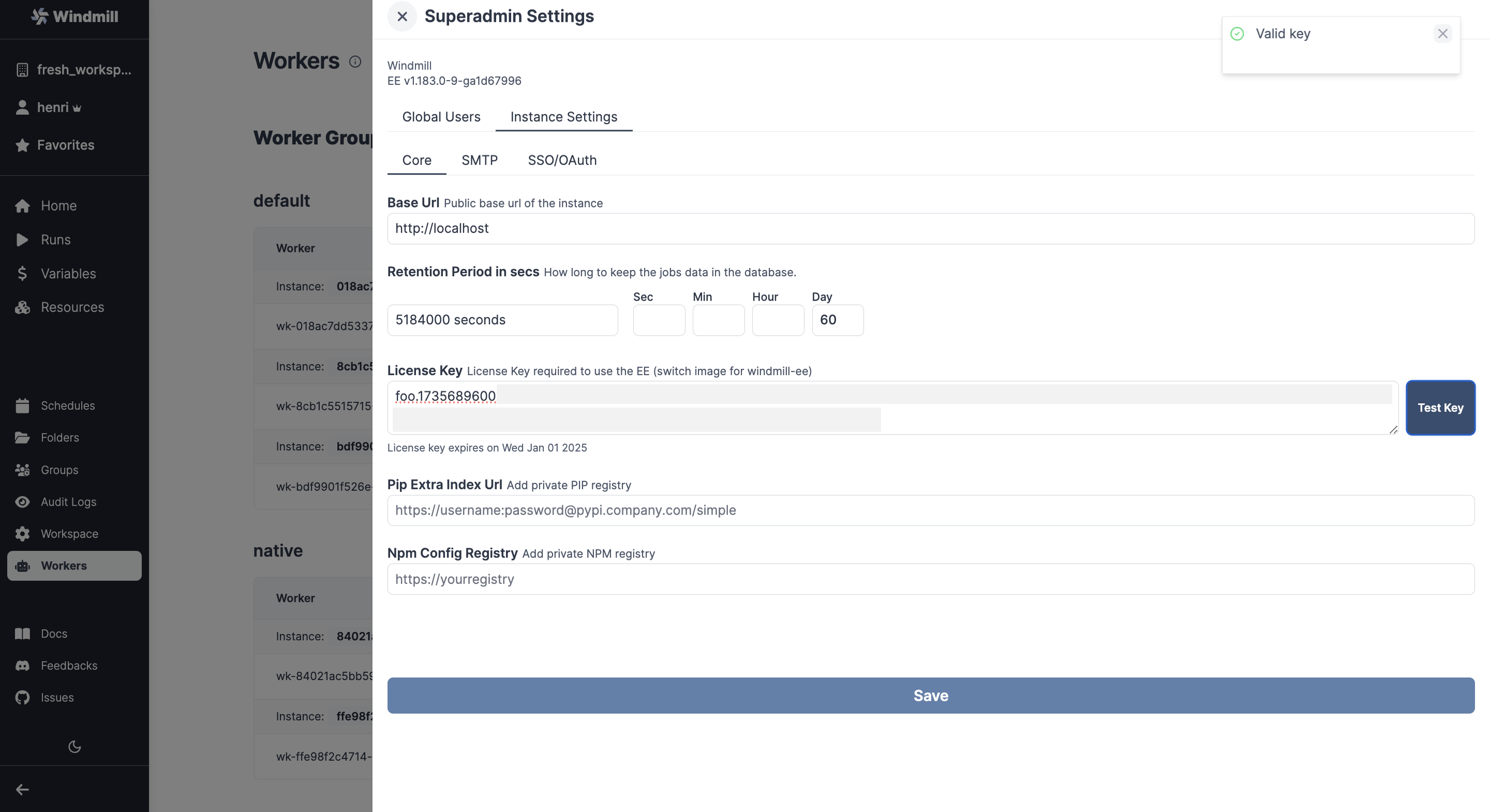
To enable the license key, switch from the windmill image to the windmill-ee image in both the server and workers. From the Instance settings, pass the license key, "Test key" and save settings.
Onboarding for enterprise customers
For new enterprise customers, we recommend following the Enterprise onboarding guide to get started.
Setup and Compute Units
Windmill uses Compute Units (CUs) to measure and track resource usage across your EE production instances.
A compute unit (CU) represents the computational resources allocated to a worker based on its memory limit. The memory limit determines the size and capacity of the worker, therefore its Compute Units.
Compute Units are calculated as follows:
- A worker with 1GB memory limit = 0.5 CU
- A worker with 2GB memory limit = 1 CU
- A worker with 4GB memory limit = 2 CUs
- On self-hosted plans, any worker with more than 2GB of memory counts as 2 Compute Units (e.g., a worker with 16GB counts as 2 Compute Units)
- On cloud plans, the number of Compute Units scales linearly with memory (e.g., a 4GB worker = 2 Compute Units, 8GB worker = 4 Compute Units)
- 8 native workers count as 1 compute unit. They go 8 by 8. Native workers are workers within the native worker group. This group is pre-configured to listen to native jobs tags (query languages). Those jobs are executed under a special mode with subworkers for increased throughput. You can set the number of native workers to 0.
On AWS ECS, if the reported Compute Units is not what you expect, you can apply memory limit at the container level.
How Compute Units are counted for a subscription
Based on the telemetry your EE instances send, Compute Units are calculated as follows:
- The memory of each worker of all of the prod instances is aggregated against the global compute unit quota
- Compute Units are allocated freely across workers of different sizes based on needs
- The total number of Compute Units is rounded up to the nearest whole number, as there are no half Compute Units
- It only counts workers of all of the prod instances and exclude the other containers like ui, lsp, multi-player, etc.
You can monitor your Compute Units usage from the Customer Portal.
Example setups and their Compute Units
Below are examples from your setup docker-compose.yml file and their Compute Units.
Basic setup (3 CUs)
Calculation: 2 workers × 1 CU each + 1 native worker with NUM_WORKERS=8 = 3 CUs
services:
  # Other services (db, server, caddy, etc.) don't count towards CUs

  windmill_worker_custom_name:
    deploy:
      replicas: 2  # 2 workers × 1 CU each = 2 CUs
      resources:
        limits:
          memory: 2048M  # 2GB = 1 CU per worker

  windmill_worker_native:
    deploy:
      replicas: 1  # 1 worker with subworkers NUM_WORKERS=8 = 1 CU
      resources:
        limits:
          memory: 2048M
    environment:
      - WORKER_GROUP=native
      - NATIVE_MODE=true
Medium setup (8 CUs)
Calculation: 3 workers × 1 CU each + 1 native worker with NUM_WORKERS=8 = 8 CUs
services:
  windmill_worker:
    deploy:
      replicas: 3  # 3 workers × 1 CU each = 3 CUs
      resources:
        limits:
          memory: 2048M # 2GB = 1 CU

  windmill_small_worker:
    deploy:
      replicas: 4  # 4 workers with 1GB memory = 0.5 CUs each = 2 CUs
      resources:
        limits:
          memory: 1024M # 1GB = 0.5 CU

  windmill_worker_reports:
    deploy:
      replicas: 2  # 2 workers × 1 CU each = 2 CUs
      resources:
        limits:
          memory: 2048M # 2GB = 1 CU
    environment:
      - WORKER_GROUP=reports

  windmill_worker_native:
    deploy:
      replicas: 1  # 1 worker with NUM_WORKERS=8 = 1 CU
      resources:
        limits:
          memory: 2048M
    environment:
      - WORKER_GROUP=native
      - NATIVE_MODE=true
Large setup (Cloud Plan - 16 CUs)
Note: for now, setups of cloud EE instances are handled directly by the Windmill team. Please reach out to us if you need to configure your setup.
Calculation: 2 workers × 1 CU each + 4 workers × 3 CUs each + 1 native worker with NUM_WORKERS=8 = 16 CUs
services:
  windmill_worker_standard:
    deploy:
      replicas: 2  # 2 workers × 1 CU each = 2 CUs
      resources:
        limits:
          memory: 2048M  # 2GB = 1 CU per worker

  windmill_worker_large:
    deploy:
      replicas: 4  # 4 workers × 3 CUs each = 12 CUs
      resources:
        limits:
          memory: 6144M  # 6GB = 3 CUs per worker

  windmill_worker_reports:
    deploy:
      replicas: 1 # 1 worker × 1 CU = 1 CU
      resources:
        limits:
          memory: 2048M # 2GB = 1 CU

  windmill_worker_native:
    deploy:
      replicas: 1  # 1 worker with 8 subworkers (can't be changed) = 1 CU
      resources:
        limits:
          memory: 2048M
    environment:
      - WORKER_GROUP=native
      - NATIVE_MODE=true
Large setup (Self-hosted - 12 CUs)
Calculation: 2 workers × 1 CU each + 4 workers × 2 CUs each + 1 native worker with NUM_WORKERS=8 = 12 CUs
services:
  windmill_worker_standard:
    deploy:
      replicas: 2  # 2 workers × 1 CU each = 2 CUs
      resources:
        limits:
          memory: 2048M  # 2GB = 1 CU per worker

  windmill_worker_large:
    deploy:
      replicas: 4  # 4 workers × 2 CUs each = 8 CUs
      resources:
        limits:
          memory: 6144M  # 6GB but capped at 2 CUs per worker

  windmill_worker_reports:
    deploy:
      replicas: 1 # 1 worker × 1 CU = 1 CU
      resources:
        limits:
          memory: 2048M # 2GB = 1 CU

  windmill_worker_native:
    deploy:
      replicas: 1  # 1 worker with NUM_WORKERS=8 = 1 CU
      resources:
        limits:
          memory: 2048M
    environment:
      - WORKER_GROUP=native
      - NATIVE_MODE=true
Note: Services like db, windmill_server, lsp, multiplayer, indexer, and caddy don't count towards Compute Units.
Configuring native workers with Helm
For users deploying Windmill using Helm, native workers can be configured by modifying the values.yaml file in the Windmill Helm chart. The configuration is done through the workerGroups section with the extraEnv field.
Here's how to configure native workers in your values.yaml:
workerGroups:
  - name: "native"
    replicas: 1
    extraEnv:
      - name: "NATIVE_MODE"
        value: "true"
      - name: "SLEEP_QUEUE"
        value: "200"
In this configuration:
name: "native": Specifies the native worker group that handles query language jobsreplicas: 1: Sets the number of native worker replicas (typically 1)extraEnv: Environment variables for the native workers:NATIVE_MODE: Automatically spawns 8 subworkers and restricts the worker to native jobs + flow handlingSLEEP_QUEUE: Sleep duration between queue polling in milliseconds (default: 200)
For the complete default configuration, refer to the Windmill Helm chart values.yaml.
Compute Units and autoscaling
In terms of billing for Windmill Enterprise Edition with autoscaling, Windmill measures how long the workers are online with a minute granularity. If you use 10 workers with 2GB for 1/10th of the month, it will count the same as if you had a single worker for the full month.
As for the setup, it's like if the replicas of the worker group would adjust for a given amount of time.
AWS Marketplace
Windmill is available on the AWS Marketplace. We are notified as soon as you have subscribed to a package, a Windmill representative will come to you to give you what you need to start your subscription: license key for the self-hosted EE package, access to dedicated instance for the cloud EE package.
If you have any questions, please contact support@windmill.dev
Windmill Customer Portal
Enterprise and Pro customers manage subscriptions, usage, license keys, telemetry settings, and support issues from the Customer Portal. The portal also surfaces the result of the most recent license key renewal so you can spot a failing renewal quickly.
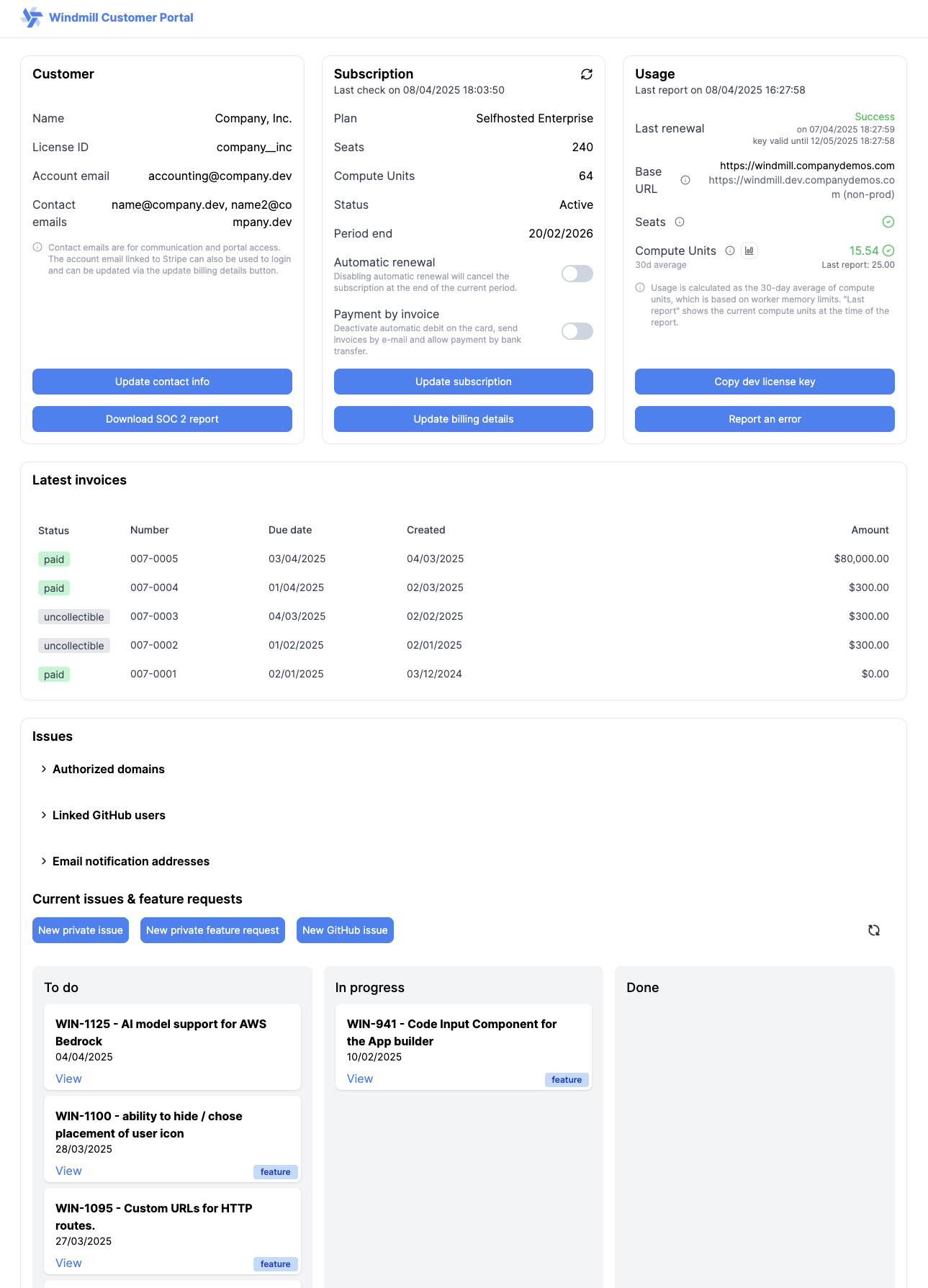
Accessing the portal
Access is available through either:
- From your Instance settings, in the "Core" tab — where you can also renew your license key.
- Through a direct link at portal.windmill.dev, entering the email used for the subscription. A login link is then sent to that email.
The login email can be the Stripe account email or any address listed in the contact emails of the subscription. Anyone matching by exact email becomes a portal admin, with full access to subscriptions, license keys, and the API. To grant a teammate the same access, add their address to the contact emails.
Users who log in via a matched authorized domain (rather than an exact email match) get access only to the issues page at portal.windmill.dev/issues.
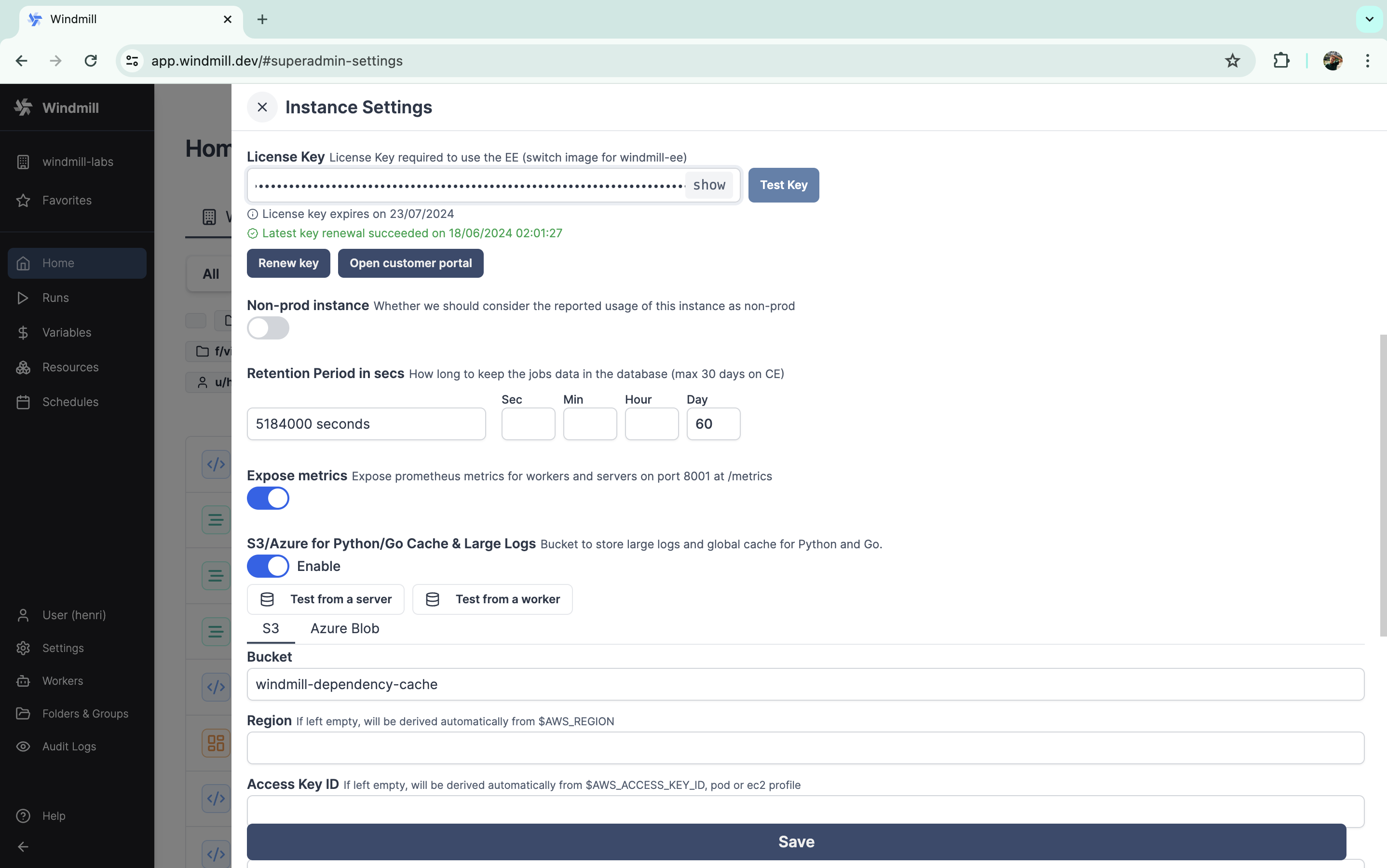
Custom link from the instance settings.
Subscriptions
Updating seats and Compute Units
You can increase seats or Compute Units from the portal; the prorated invoice is previewed before you confirm. If you adjust mid-cycle, you are charged a prorated amount for the additional resources — for example on a yearly subscription, an adjustment 10 months in is billed roughly 2/12 of the annual cost for the added resources.
To reduce seats or Compute Units, contact support@windmill.dev.
Automatic renewal and payment by invoice
You can switch automatic renewal and payment by invoice on or off at any time:
- Automatic renewal — when off, the subscription cancels at the end of the current period.
- Payment by invoice — when on, automatic debit on the card on file is disabled, invoices are sent by email, and payment by bank transfer is allowed.
Auto-upgrade seats
On monthly subscriptions, you can enable auto-upgrade so the seat count automatically increases if usage exceeds the paid seats during the periodic refresh. No proration is applied — the new seat count is billed in the next invoice.
Trial subscriptions
While a subscription is in trial, you can request an extension from support@windmill.dev or cancel the trial at any time.
AWS Marketplace subscriptions
Subscriptions billed through the AWS Marketplace link directly to the underlying AWS contract — agreement details and auto-renewal status come from AWS, and seat or Compute Unit changes are made from the AWS console. Stripe-only options (invoices, payment by invoice, automatic renewal toggle) don't apply.
Usage and graphs
For each subscription, the portal compares live usage against paid seats and Compute Units, with historical graphs covering Compute Units, seats, worker occupancy, and languages. Per-workspace graphs and the list of users counted as developers/operators (and external JWT tokens in use) are available when the relevant telemetry controls are enabled.
To monitor usage in real time, click "Send usage" from your Instance settings (do this on each instance if you have several) and refresh the portal.
Telemetry controls
Beyond the default telemetry, two opt-in toggles add detail to the data your instances send.
Workspace telemetry
When enabled, instances send per-workspace data — workspace names, job counts, and active user counts. This adds per-workspace breakdowns to the usage graphs.
Plain emails and external JWTs telemetry
When enabled, instances send unhashed email addresses alongside usage telemetry — letting you see the actual users counted as developers and operators across all your instances (deduplicated) — and the external JWT tokens used in the last 30 days, with their owner, workspace, label, and scopes. This setting auto-disables 24 hours after being turned on.
License keys
You can copy the latest valid license key from the portal at any time (the first key is also sent in the signup email). A separate dev license key is also available for development and local instances: usage on dev keys does not count toward subscription limits, but they expire when the production key expires. The production key (and therefore dev keys) keep renewing only if production stays within usage limits and all invoices are paid.
The portal also surfaces the License ID, whether the key is renewable, the last renewal attempt result, and the key expiry date — colored yellow within 10 days of expiry and red once expired.
Issues and feature requests
The portal hosts the feature request and issue dashboard for Enterprise customers. You can configure:
- Authorized domains — anyone with an email address from these domains can log in to the issues page (read/write issues only, no access to subscriptions).
- Linked GitHub users — issues created on GitHub by these users are automatically added to the dashboard.
- Email notification addresses — addresses that receive notifications about new issues and updates.
API access
Portal admins can create API keys to consume the customer API programmatically — for example to fetch usage or list subscriptions from a monitoring script.
- A new key is shown only once at creation; copy it immediately.
- Revoking a key takes effect immediately and any integration using it stops working.
API keys are read-only (GET requests only). The full API reference is published at portal.windmill.dev/docs and is authenticated with the same login session as the portal.
SOC 2 report
Enterprise customers with an active subscription can download Windmill's SOC 2 report directly from the portal. Other users can request it from support@windmill.dev.
Usage checks
Windmill employs lightweight telemetry to automatically track and report the usage of memory and seats for your subscription. Even on self-hosted plans, telemetry associated to your license key is reported to Windmill. On Enterprise Edition, telemetry cannot be fully disabled but can be reduced to a minimal mode (see Instance settings - Telemetry).
When minimal telemetry is enabled, only the following is sent:
- version of your instance
- instance base URL
- login type usage (login type, count)
- worker usage (worker, worker instance, vCPUs, memory)
- user usage (author count, operator count)
- superadmin email addresses
- development instance status
When minimal telemetry is disabled, the following is also collected:
- job usage (language, total duration, count)
How the data is calculated:
- Seats: number of users (1 developer, or 2 operators) who are active (from logging in to running or deploying a script) on the platform in the last 30 days, according to the audit logs. Each external JWT token used in the last 30 days also counts as 1/2 seat (same as an operator). User count is across all instances (dev, prod) but Windmill only counts once the same user.
- Memory: we aggregate the limits of all production containers. Workers come in different sizes: small (1GB), standard (2GB), and large (> 2GB). For each compute unit, you pay for, you get a quota of 2 worker-gb-month. Non-prod instances are not counted in the billing for computation usage. For development environments, a dev license key from the portal is an alternative to marking instances as non-prod manually.
Using a number of seats, workers, or memory greater than the terms of your subscription is technically possible, but if you do not adjust your subscription accordingly (via the Customer Portal), we will ask you to take steps to correct this, with 3 options:
- Our telemetry data may not be accurate or you do not understand it. In this case, please inform us or book a call: https://www.windmill.dev/ruben-30min
- You need to re-arrange your use of Windmill. If so, please let us know that you need a period of adjustment that exceeds 35 days (validity of a license key), and feel free to contact us here or at support@windmill.dev so we can help you manage this.
- Adjust your subscription via the Customer Portal.
Once excessive usage has been detected and we have informed you, your license key will cease to auto-renew (as it does by default every day). This leaves you with a period of 35 days (the validity period of a key) to make the necessary adjustments on your side. At the end of the term, Windmill Enterprise Edition will stop running your jobs.
Excessive usage
If the numbers we receive from telemetry exceeds the terms of the subscription on average at the end of the period, we will send you a warning to either clarify that it was a one-off exceptional event or to adjust your subscription. The key won't renew until clarification or adjustment is provided meaning there is a 35 days period to act on it before it will expire as it renews every day.